About pull request merges
Merge a pull request when the proposed changes are ready and any repository requirements are satisfied. You can't merge a draft pull request.
Repository rules or branch protection may require reviews, status checks, or an up-to-date branch before merging. See 保護されたブランチについて.
ブランチ保護規則の代わりに、ルールセットを作成できます。 ルールセットには、状態などのブランチ保護規則よりもいくつかの利点があり、管理者アクセスを必要とせずに検出可能性が向上します。 同時に複数のルールセットを適用することもできます。 詳しくは、「ルールセットについて」をご覧ください。
すべてのマージの要件が満たされたときに、自動的にマージされるようにPull Requestを設定できます。 詳しくは、「プルリクエストを自動的にマージする」をご覧ください。
If the base branch requires a merge queue, the available merge options differ from those described here. See pull request とマージ キューのマージ.
If the pull request has merge conflicts, or if you want to test changes first, check out the pull request locally.
The repository may automatically delete the head branch after merging. See ブランチの自動削除を管理する.
メモ
プルリクエストがマージされた後にheadブランチを削除すると、GitHubは同じリポジトリ内に削除されたブランチをベースブランチと指定しているオープンなプルリクエストがないかをチェックします。 GitHubはそういったプルリクエストを自動的に更新し、ベースブランチをマージされたプルリクエストのベースブランチに変更します。
Pull requests use the --no-ff option, except squashed or rebased pull requests, which use fast-forward merging.
プル要求を問題にリンクして、修正プログラムが進行中であることを示し、pull request がマージされたときに問題を自動的に閉じます。 詳しくは、「プルリクエストを課題にリンクする」をご覧ください。
If you don't want to merge the changes, you can close the pull request.
Merging a pull request
-
リポジトリ名の下にある [Pull requests] をクリックします。
![リポジトリのメイン ページのスクリーンショット。 水平ナビゲーション バーでは、[pull request] というラベルが付いたタブが濃いオレンジ色の枠線で囲まれています。](/assets/cb-51156/images/help/repository/repo-tabs-pull-requests-global-nav-update.png)
-
In the "Pull Requests" list, click the pull request you want to merge.
-
Scroll down to the bottom of the pull request. Depending on the merge options enabled for your repository, choose a merge method:
-
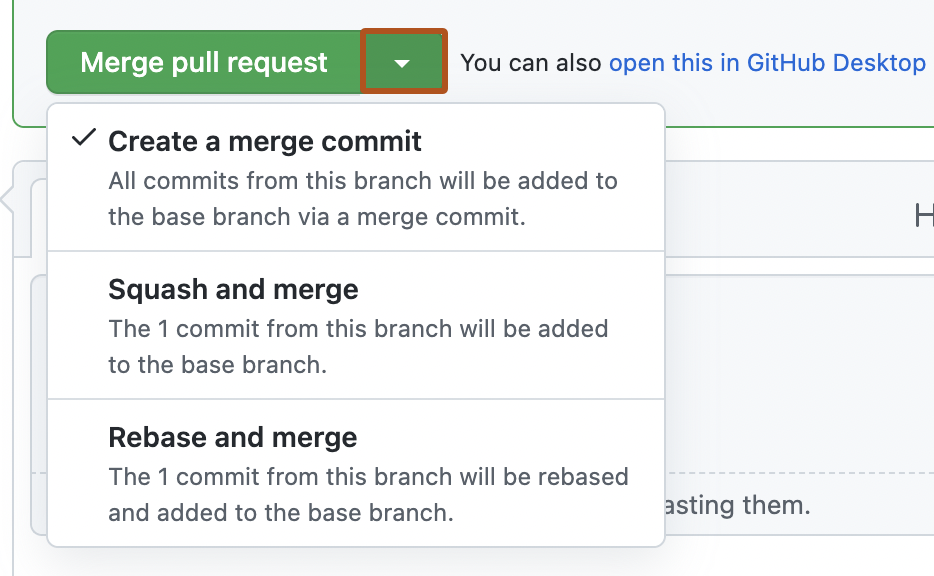
Merge all commits into the base branch by clicking Merge pull request. If the option is not shown, click the merge dropdown menu and select Create a merge commit.
-
Squash the commits into one commit by clicking the merge dropdown menu, selecting Squash and merge, and then clicking Squash and merge.
-
Rebase the commits individually onto the base branch by clicking the merge dropdown menu, selecting Rebase and merge, and then clicking Rebase and merge.
メモ
Rebase and merge will always update the committer information and create new commit SHAs. See About pull request merges.
-
-
If prompted, type a commit message, or accept the default message.
スカッシュ マージの既定のコミット メッセージについては、「プルリクエストのマージ」をご覧ください。
-
GitHubのアカウントに複数のメール アドレスが関連付けられている場合は、メール アドレスのドロップダウン メニューをクリックし、Git 作成者のメール アドレスとして使用するメール アドレスを選択します。 このドロップダウンメニューには、検証済みのメールアドレスだけが表示されます。 メール アドレスのプライバシーを有効にした場合は、no-reply がコミット作成者の既定のメール アドレスになります。 no-reply メール アドレスの正確な形式の詳細については、「コミットメールアドレスを設定する」を参照してください。
![リポジトリのメイン ページのスクリーンショット。 水平ナビゲーション バーでは、[pull request] というラベルが付いたタブが濃いオレンジ色の枠線で囲まれています。](/assets/cb-51156/mw-1440/images/help/repository/repo-tabs-pull-requests-global-nav-update.webp)


メモ
The email selector is not available for rebase merges, which do not create a merge commit. For squash merges, the email selector is only shown if you are the pull request author and you have more than one email address associated with your account.
- Click Confirm merge, Confirm squash and merge, or Confirm rebase and merge.
- Optionally, delete the branch. This keeps the list of branches in your repository tidy.
メモ
GitHub CLI の詳細については、「GitHub CLI について」を参照してください。
To merge a pull request, use the gh pr merge subcommand. Replace pull-request with the number, URL, or head branch of the pull request.
gh pr merge PULL-REQUEST
Follow the interactive prompts to complete the merge. See プルリクエストのマージ.
Alternatively, you can use flags to skip the interactive prompts. For example, this command squashes the commits into a single commit with the commit message "my squash commit", merges the squashed commit into the base branch, and then deletes the local and remote branch.
gh pr merge 523 --squash --body "my squash commit" --delete-branch
Further reading
- プルリクエストをリバートする
- GitHub Desktopでブランチを同期する方法 using GitHub Desktop
- プルリクエストのマージ
- プル リクエストをマージして閉じる