Syncing a fork branch from the web UI
-
On GitHub, navigate to the main page of the forked repository that you want to sync with the upstream repository.
-
Above the list of files, select the Sync fork dropdown menu.
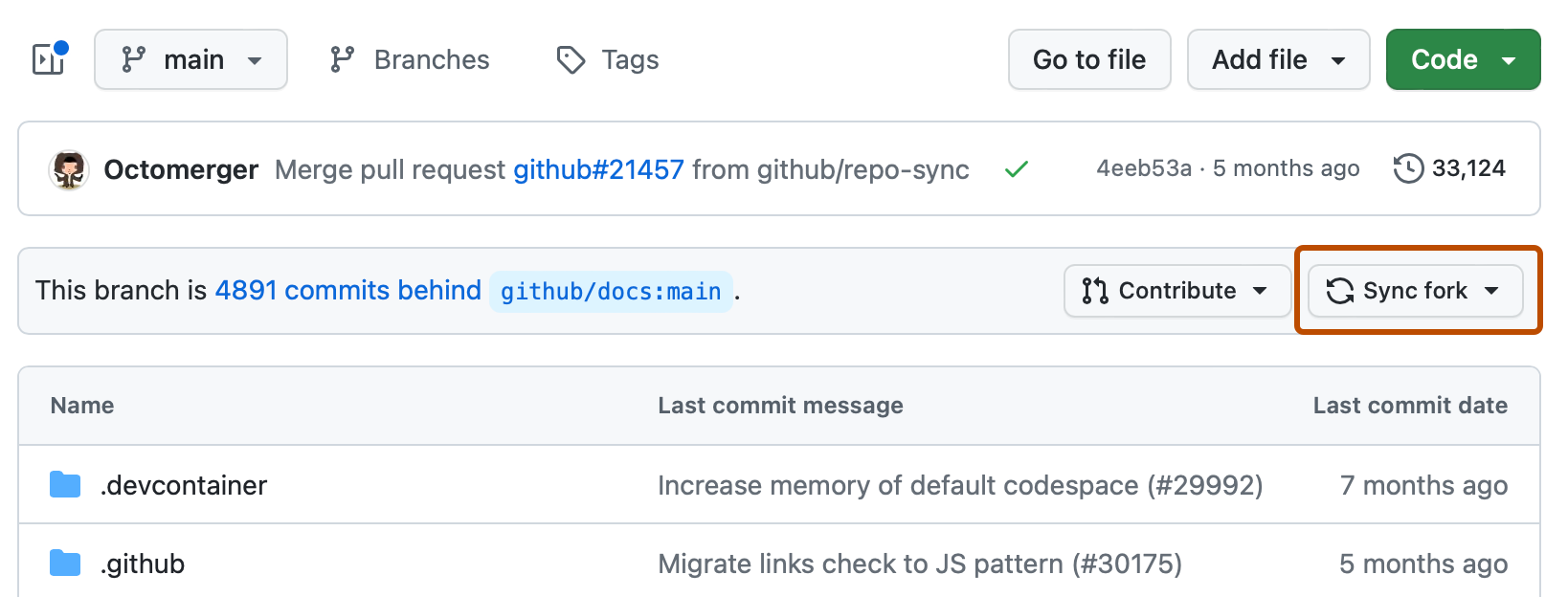
-
Review the details about the commits from the upstream repository, then click Update branch.

If the changes from the upstream repository cause conflicts, GitHub will prompt you to create a pull request to resolve the conflicts.
Syncing a fork branch with the GitHub CLI
GitHub CLI ist ein Open-Source-Tool zur Verwendung von GitHub über die Befehlszeile deines Computers. Wenn du über die Befehlszeile arbeitest, kannst du die GitHub CLI verwenden, um Zeit zu sparen und Kontextwechsel zu vermeiden. To learn more about GitHub CLI, see Informationen zu GitHub CLI.
To update the remote fork from its parent, use the gh repo sync -b BRANCH-NAME subcommand and supply your fork and branch name as arguments.
gh repo sync owner/cli-fork -b BRANCH-NAME
If the changes from the upstream repository cause conflicts, the GitHub CLI can't sync. To overwrite the destination branch, use the --force flag.
Syncing a fork branch from the command line
Before you can sync your fork with an upstream repository, you must configure a remote that points to the upstream repository in Git. See Konfigurieren eines Remoterepositorys für einen Fork.
-
Open your terminal or Git Bash.
-
Change the current working directory to your local project.
-
Fetch the branches and their respective commits from the upstream repository. Commits to
BRANCH-NAMEwill be stored in the local branchupstream/BRANCH-NAME.$ git fetch upstream > remote: Counting objects: 75, done. > remote: Compressing objects: 100% (53/53), done. > remote: Total 62 (delta 27), reused 44 (delta 9) > Unpacking objects: 100% (62/62), done. > From https://github.com/ORIGINAL-OWNER/ORIGINAL-REPOSITORY > * [new branch] main -> upstream/main -
Check out your fork's local default branch. In this example, we use
main.$ git checkout main > Switched to branch 'main' -
Merge the changes from the upstream default branch into your local default branch. In this example, the upstream default branch is
upstream/main. This syncs your fork's default branch with the upstream repository without losing your local changes.$ git merge upstream/main > Updating a422352..5fdff0f > Fast-forward > README | 9 ------- > README.md | 7 ++++++ > 2 files changed, 7 insertions(+), 9 deletions(-) > delete mode 100644 README > create mode 100644 README.mdIf your local branch didn't have any unique commits, Git will perform a fast-forward. See Basic Branching and Merging in the Git documentation.
$ git merge upstream/main
> Updating 34e91da..16c56ad
> Fast-forward
>  README.md                 |    5 +++--
>  1 file changed, 3 insertions(+), 2 deletions(-)
If your local branch had unique commits, you may need to resolve conflicts. See Pull Requests zusammenführen und schließen.
Tipp
Syncing your fork only updates your local copy of the repository. To update your fork on GitHub.com, you must push your changes.